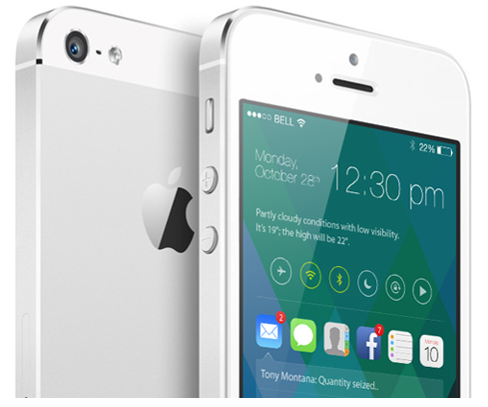
Following months of expectation, Apple's new iPhones and iOS 7 are both available now, with over half the company's mobile users having already installed the new OS. There's over nine million iPhones sold since launch as momentum returns to the smartphone sector -- and as CIRP reckons a fifth of new iPhone customers previously owned an Android device, there's a good chance a million or so people may need a little help making this transition right now.
Here goes the transition:
Contacts
Contacts are important. Even if your carrier fails to transfer your contacts for you, it's really easy to migrate contacts between the platforms using your Google account.
On your Android device:
- Tap Menu>Settings>Accounts & Sync and find Google.
- Tap it and choose your Google account name at the top
- You'll see a list of Sync settings, tick Sync Contacts
On the iPhone
- Tap Settings>Mail, Contacts, Calendars>Add Account>Other>Add CardDav Account
- Enter google.com as the server
- Input your Google account email address and password
- Click Next and your contacts should sync
It's also easy to migrate contacts using Gmail and iTunes, just follow the Gmail set-up instructions in Mail, Contacts, Calendars>Add Account. The iPhone will then sync all those Gmail contacts.
If you use a Microsoft Exchange server, the procedure follows:
- On the iPhone
- Tap Settings>Mail, Contacts, Calendars>Add Account>
- Tap Add Account
- Select Microsoft Exchange
- Enter your email address and login information
- (NB: You'll need to enter your Exchange server domain if its hosted)
- Enter a username is you sync with a real Exchange server
- Tap Accept, let the sync procedure do its thing.
Alternatively you may want to use the transition between the two platforms as an opportunity to clean up your contacts. One way to combine the two tasks is to work through your contacts emailing or texting only those you want to keep.
Finally, of course, there's an app for that: Available on Google Play Migration+lets you transfer your contacts between platforms but costs $1.99 (for one export/import procedure).
Calendar
Getting your calendar information into your iPhone isn't too hard:
- Tap Settings>Mail, Contacts, Calendars
- Select your Gmail account (or add it)
- Turn on syncing for Calendars
It’s possible you keep multiple calendars. If you do then visit this Google website and sign into your account. You'll see a list of all your calendars -- just tick the box of the ones you want to sync with your Apple device and click save. You should then see these added the next time you open the Calendars app on your iPhone (once it syncs).
None of the above
Perhaps you didn't use a Google account for all your contacts? There's no reason to panic. Unlike Apple, Google's Android supports external storage media -- and this really comes into its own when exporting your data. As Gizmodo explains: "If your contact information lives in the Android phone's local memory":
- Open Contacts on your Android, tap the menu and select Import/Export.
- Select 'Export to SD card
- Connect the card to your PC or Mac
- Copy the .vcf file to your desktop
- Log into your iCloud account using a browser
- Drag & drop your .vcf card onto 'All Contacts' in iCloud
There are some limitations to the size of .vcf cards you can import into iCloud in one go. These are detailed here.
This discussion forum on the Apple website should also help.
Your media
Your images and videos are important. There's lots of ways to export these between the two platforms, but perhaps the easiest way to port them across to iOS from Android is to use cloud-based services, such as Dropbox.
Dropbox is available on both platforms. Simply export your Android-hosted content to your Dropbox storage account and then download this to your iPhone's app equivalent using the Dropbox app on the other end of the migration.
Alternatively there's a series of neat tricks to achieve this, thanks to Sharon Vaknin:
- Plug your Android device into your computer and put it into Disk Drive mode.
- Your phone appears as a drive on the desktop/MyComputer
- Create a desktop folder for your data migration (call it "Upgrading to iPhone")
- Then manually go through the files on your Android device, dragging the things you want into that desktop folder.
- Connect your iPhone (already set-up and activated)
- Click on your iPhone's name in the sidebar and select Photos in the main window
- Check Sync Photos, then Choose Folder and navigate to your "Upgrading" folder. Your images will then turn up in your iPhone's Photos app.
- To transfer the music you want to keep, just drag & drop your "Upgrading" folder to your iPhone's name in the iTunes sidebar.
- The music will now be imported into iTunes for transfer to the iPhone's Music App.
Google Play
The simplest way to get your Google Play music onto your iOS device comes in the form of the gmusic 2 app. The app lets Google Play Music customers access songs stored in their cloud locker and also enables them to listen to artists from the on-demand All Access catalog. The app supports offline play and plays in the background so you can use other apps while listening to your music.
Google Apps
While you get used to their Apple equivalents, most of the Google apps you've been using on your Android device are also available for your iOS system.
Available apps include Google Maps, Google Earth, Google Translate, Gmail, Chrome, Google Drive, Google Translate, Google+, Hangouts, YouTube and many more. You can take a look at all the available Google apps for iPad and iPhone here. Google's serious about developing for its closest competitor: if you're a developer you can peruse the current Google app development for iOS job listings here.
Then there are the third party apps. You'll find all the most widely used apps (Facebook, for example) across all major mobile platforms. The fact is that you'll likely find most of the apps you use on Google also available on iOS: however, you may be asked to pay for them again.
Missing tricks
Some of the things hard core Android users will bemoan because they don't exist on iOS include: user-installed widgets, NFC support or the less open nature of the OS. I guess if you're migrating to the iPhone from an Android device, those things probably don't matter to you too much, anyway. Those who these things do matter to probably won't be making the transition.
I hope these tips help make things a little easier for those Android users who do intend migrating to an iOS device -- though it would be helpful were Apple to deliver a simple set of cross-platform tools with which users could more easily engage in the process: even iTunes for Android could make life a little easier.